The workspace
The header
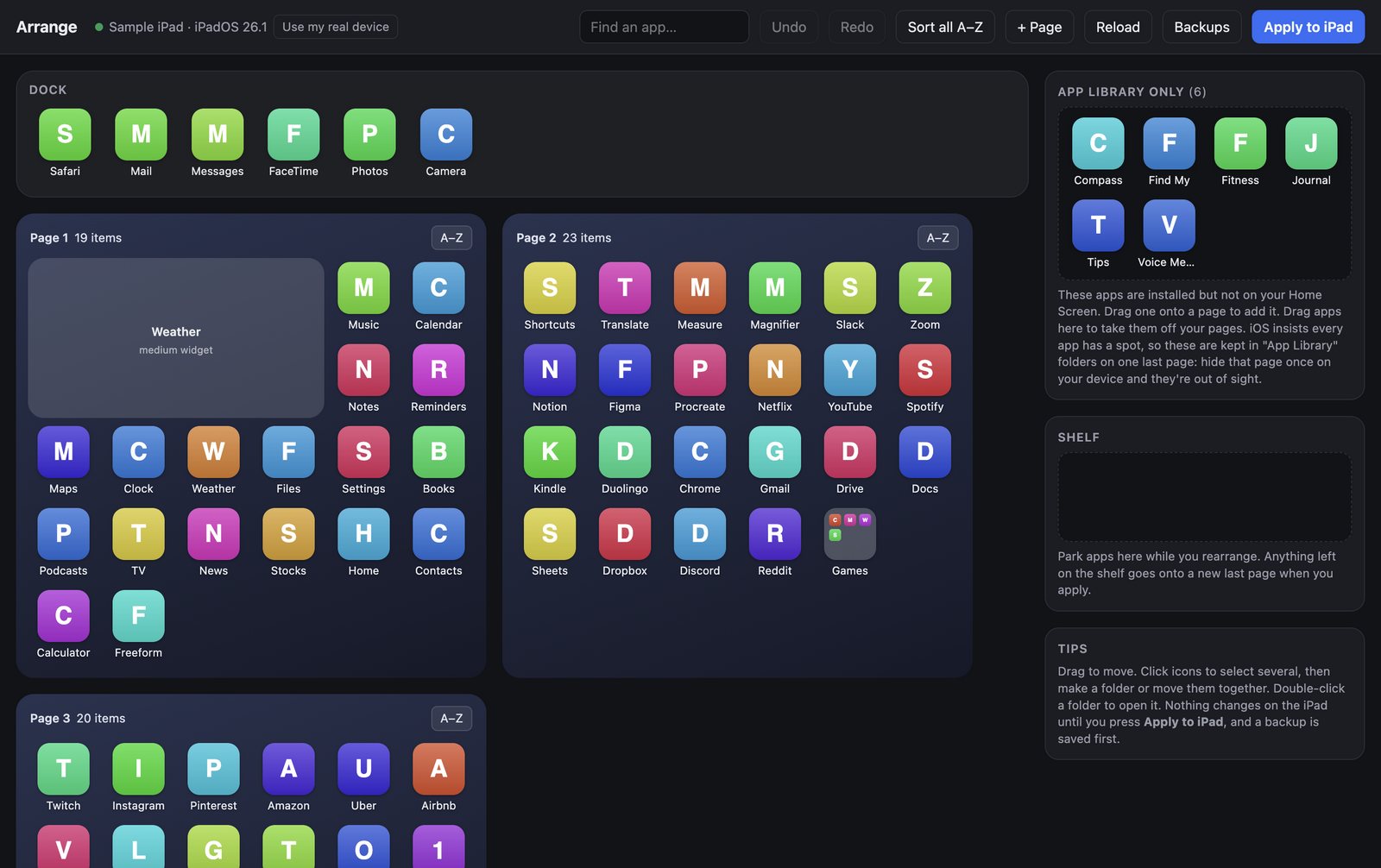
From left to right, the bar across the top of the window shows:
| Item | What it does |
|---|---|
| Device status | The name of the connected device, or Not connected. When you're using a sample, Use my real device switches back. |
| Find an app… | Search your Home Screen. See Find an app. |
| Undo / Redo | Step back and forward through your changes. |
| Sort all A–Z | Alphabetize the apps and folders on every page. See Sort A–Z. |
| Organize | Group apps by category. See Organize by category. |
| + Page | Add an empty page at the end. |
| Reload | Throw away unapplied changes and read the layout from the device again. |
| Restart to Update | Appears when a new version of Arrange has downloaded. See Updates. |
| ⚙︎ Settings | License, backups, help, updates, and AI. |
| Buy / Enter key | Buy or enter your license key. See Pricing and your key. |
| Apply to iPhone / Apply to iPad | Send your layout to the device. See Apply your layout. |
The board
The main area shows the Dock first, then every Home Screen page in order: Page 1, Page 2, and so on. Each page header shows how many items it holds, an A–Z button to sort just that page, and Remove when the page is empty.
If a page holds more than fits on your device, its header warns you that iOS or iPadOS will spill the rest onto the next page.
Widgets appear as grey blocks. You can move them between pages, but you can't edit them in Arrange. See Known limits.
The sidebar
| Card | What it's for |
|---|---|
| Folder | Appears when you double-click a folder. Rename, sort, add a folder page, or unpack it. See Folders. |
| App Library only | Apps that are installed but not on any page. See Remove apps from the Home Screen. |
| Shelf | A parking spot for apps while you rearrange. See The Shelf. |
| Tips | A short reminder of how things work. |
Find an app
Type in Find an app… to search by app name. Matching apps are highlighted and everything else is dimmed. Folders that contain a match are highlighted too, so you can find an app even when it's tucked inside one. Clear the box to show everything again.