Your first layout
Once your Home Screen is showing in Arrange, here's a quick tour of a first cleanup.
1. Look at everything at once
Every Home Screen page appears side by side, with the Dock at the top. The sidebar on the right holds your App Library only apps, the Shelf, and any folder you open.
2. Move apps around
- Drag any app to another spot, another page, the Dock, or into a folder.
- Click several apps to select them. A bar appears with Make folder, Send to shelf, Remove from Home Screen, and Move to….
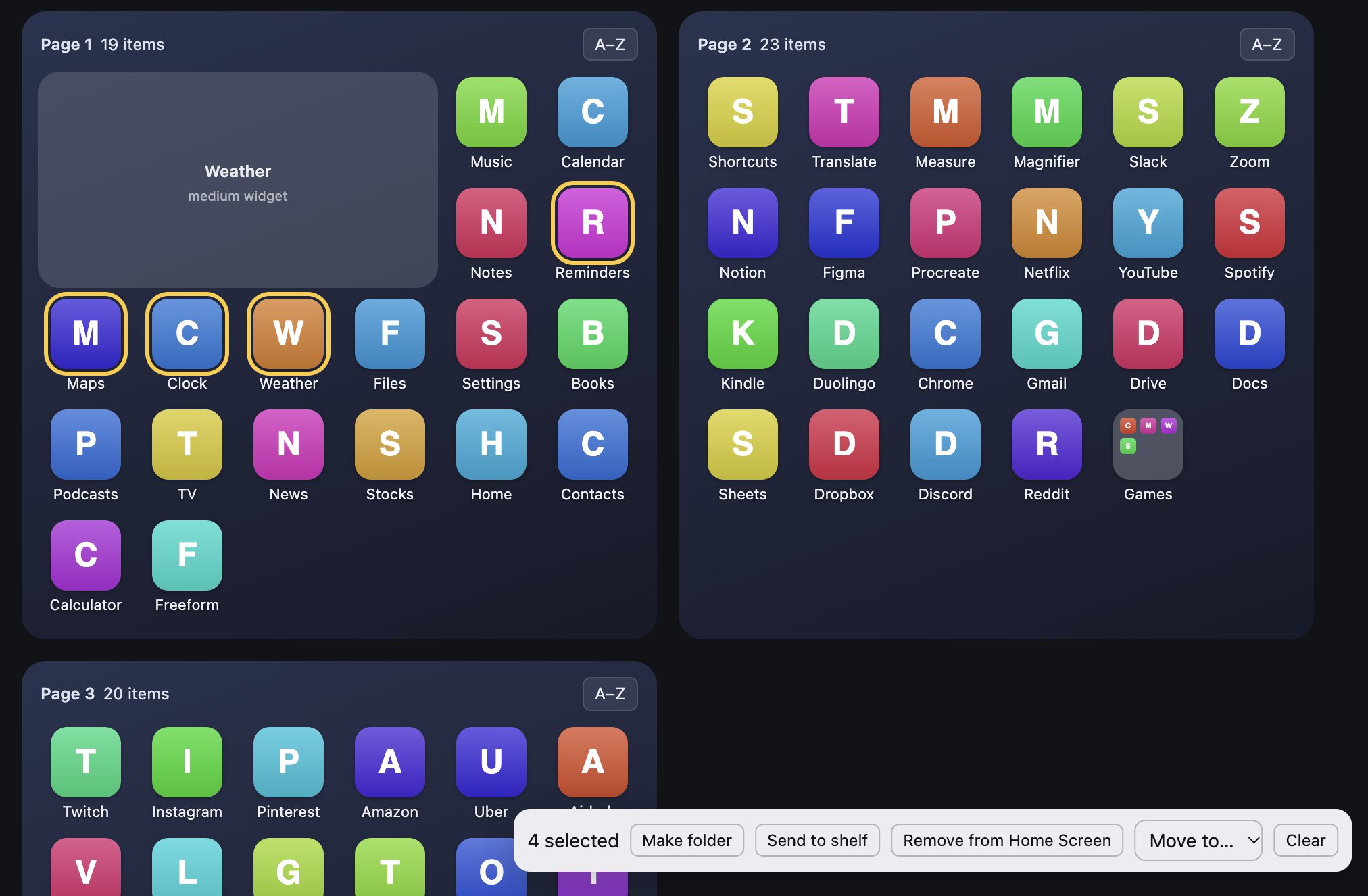
More in Move apps.
3. Make some folders
Select the apps that belong together, click Make folder, and name it. Double-click any folder to open it in the sidebar, where you can rename it, sort it A–Z, or unpack it. See Folders.
4. Tidy up
- Click Sort all A–Z to alphabetize every page, or A–Z on a single page. See Sort A–Z.
- Click Organize to group apps by category. See Organize by category.
- Drag apps you rarely use to App Library only to take them off your pages without deleting them. See Remove apps from the Home Screen.
Changed your mind? Press Undo (Cmd+Z). Nothing on your device changes yet.
5. Apply
When it looks right, press Apply to iPhone or Apply to iPad. Arrange saves a backup of your current layout, sends the new one, then reads it back to check your device kept it. See Apply your layout.
The first time you apply, you'll need a key. Click Buy / Enter key, buy one for $4.99, and paste it in from your purchase email. See Pricing and your key.