Move apps
Drag and drop
Drag any app to move it:
- to another spot on the same page,
- to another page,
- into or out of the Dock,
- into an open folder in the sidebar,
- onto the Shelf or into App Library only.
Other icons make room as you drag, and nothing jumps around on your device while you work.
Select several apps
Click an app to select it. Click more apps to add them to the selection, and click a selected app again to deselect it. Selected apps get a yellow outline.
When anything is selected, a bar appears at the bottom of the window:
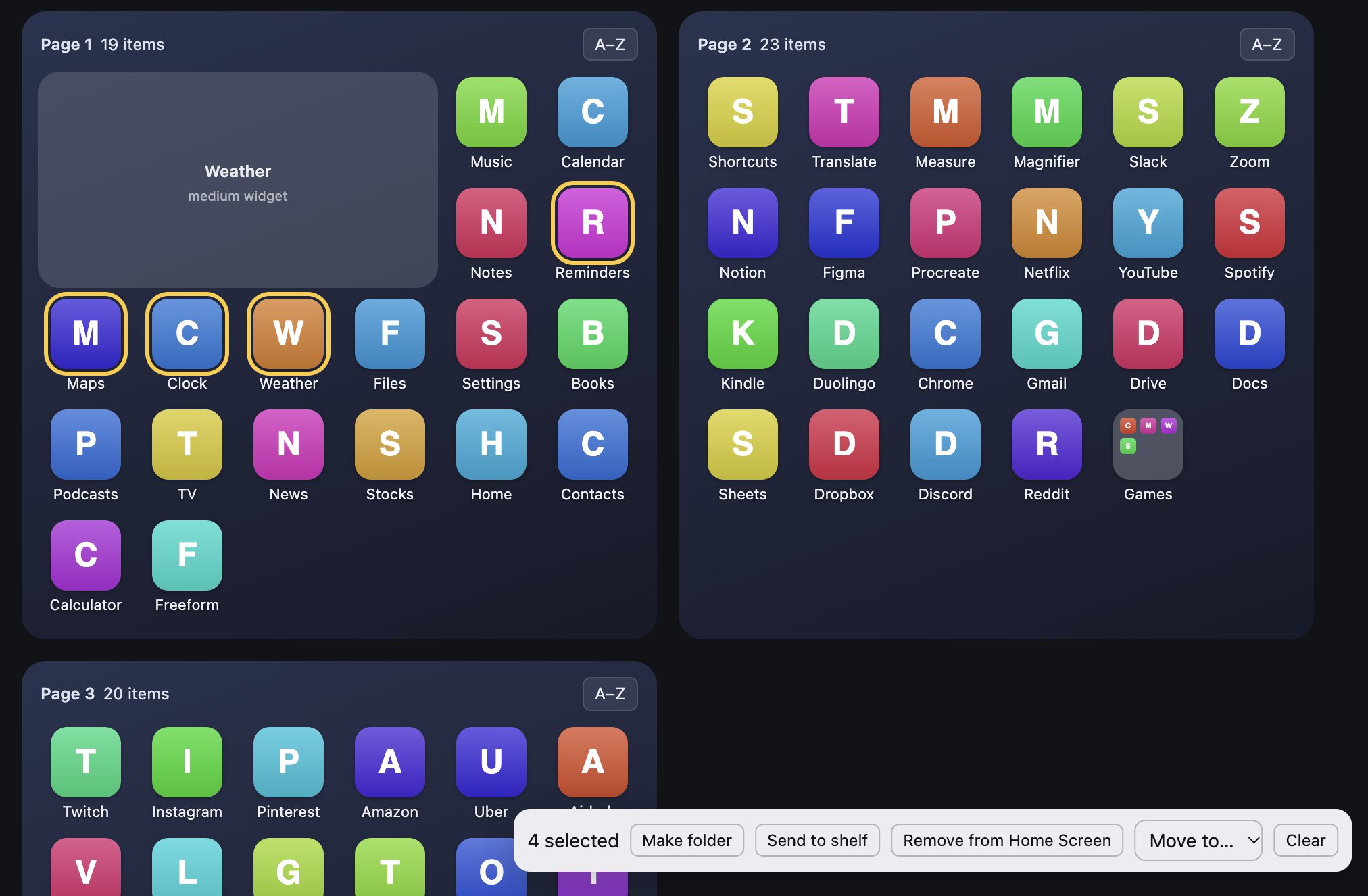
| Button | What it does |
|---|---|
| Make folder | Puts the selected apps in a new folder and opens it so you can name it. See Folders. |
| Send to shelf | Moves the selection to the Shelf. |
| Remove from Home Screen | Moves the selected apps to App Library only. They stay installed. See Remove apps from the Home Screen. |
| Move to… | Sends the selection to the Dock, any page, or a New page. Moved apps go at the end of that page. |
| Clear | Deselects everything. You can also press Esc. |
The iPhone Dock holds 4 items
If you move more apps to the Dock than it has room for, the ones that don't fit go to the Shelf, and Arrange tells you.